Quick Start
A step-by-step guide on how to start using Vault to manage encrypted objects.
To get the most out of these guides, you’ll need:
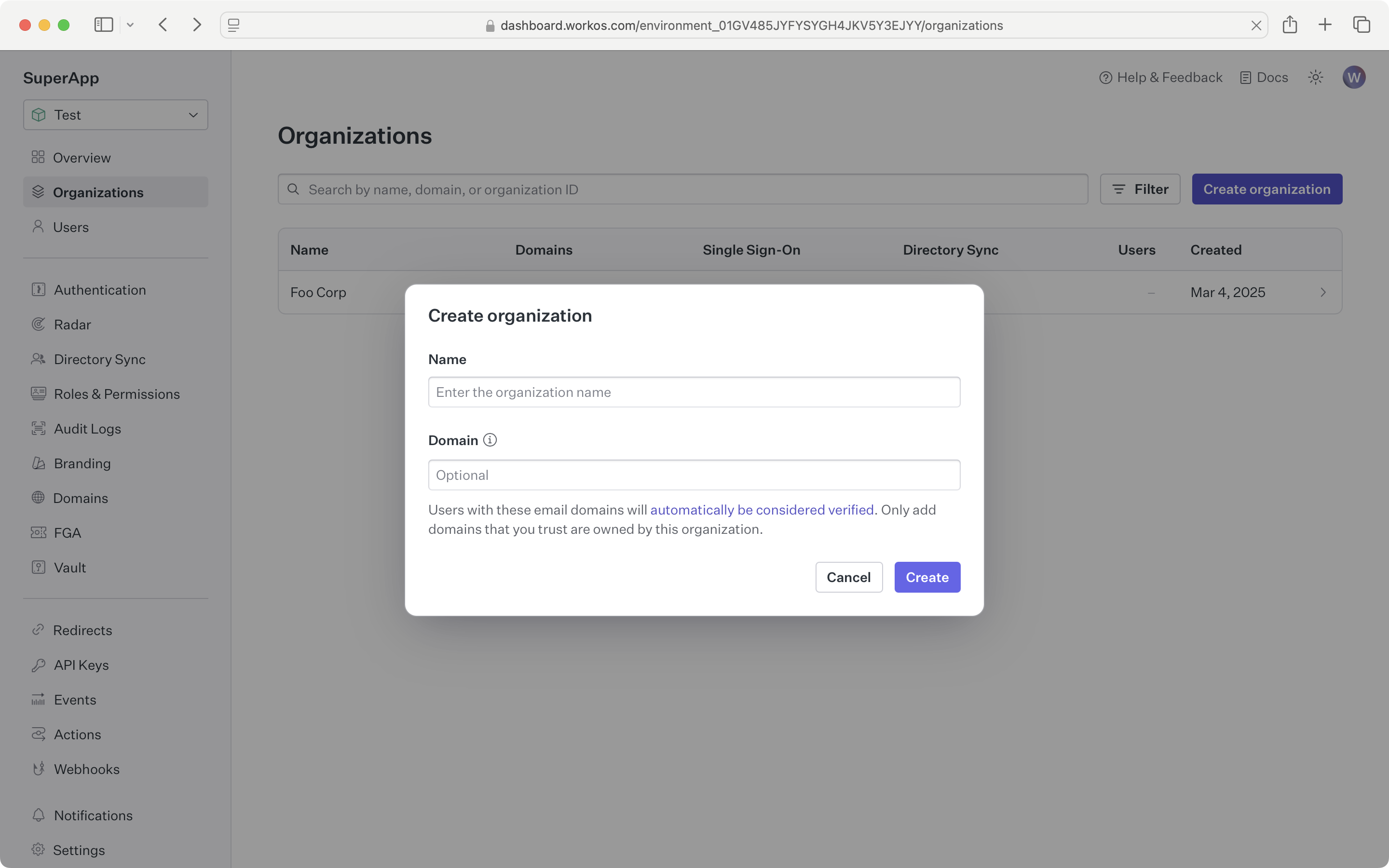
Sign in to your WorkOS Dashboard account and create a new Organization.
In this guide, we will walk you through what you will need to set up Vault for securing and isolating organization-specific data:
- Encrypt and store data linked to an organization
- Retrieve the encrypted data
- Delete an object that’s no longer in use
- Object
- Represents an encrypted key-value item stored by Vault.
- Organization
- Describes an organization whose users sign in with a SSO Connection, or whose users are synced with a Directory Sync Connection.
WorkOS offers native SDKs in several popular programming languages. Choose a language below to see instructions in your application’s language.
Don't see an SDK you need? Contact us to request an SDK!
Install the SDK using the command below.
| npm install @workos-inc/node |
| yarn add @workos-inc/node |
To make calls to WorkOS, provide the API key and, in some cases, the client ID. Store these values as managed secrets, such as WORKOS_API_KEY and WORKOS_CLIENT_ID, and pass them to the SDKs either as environment variables or directly in your app’s configuration based on your preferences.
The Vault API and SDKs provide a method to encrypt and store a blob of data linked to a WorkOS organization. The encryption key used will be both unique to the KV item and cryptographically isolated from all other organizations.
Once created, the key context for an object cannot be changed. Only the value can be updated. The expected version of the object can be provided as a consistency lock when writing to the object.
Objects can be listed, returning just the names of the objects. The metadata for each object can be queried – this provides more information about it without needing to decrypt the actual value. Fetching the object value will return the same metadata in addition to the unencrypted value.