AuthKit
Easy to use authentication platform designed to provide a flexible, secure, and fast integration.
Introduction
Integrating AuthKit into your app can be done in less than ten minutes. In this guide, we’ll walk you through adding a hosted authentication flow to your application using AuthKit.
In addition to this guide, there are a variety of example apps available to help with your integration.
Before getting started
To get the most out of this guide, you’ll need:
- A WorkOS account
- Your WorkOS API Key and Client ID
Want to skip the manual setup? The WorkOS AI Installer & CLI detects your framework, installs the SDK, configures your dashboard, and writes the integration code – all with a single command.
Let’s add the necessary dependencies and configuration in your WorkOS Dashboard.
For a Next.js integration, use the authkit-nextjs library. Start by installing it in your Next.js project via npm.
A redirect URI is a callback endpoint that WorkOS will redirect to after a user has authenticated. This endpoint will exchange the authorization code returned by WorkOS for an authenticated User object. We’ll create this endpoint in the next step.
You can set a redirect URI in the Redirects section of the WorkOS Dashboard. We recommend using http://localhost:3000/callback as the default here.
WorkOS supports using wildcard characters in Redirect URIs, but not for the default Redirect URI. More information about wildcard characters support can be found in the Redirect URIs guide.
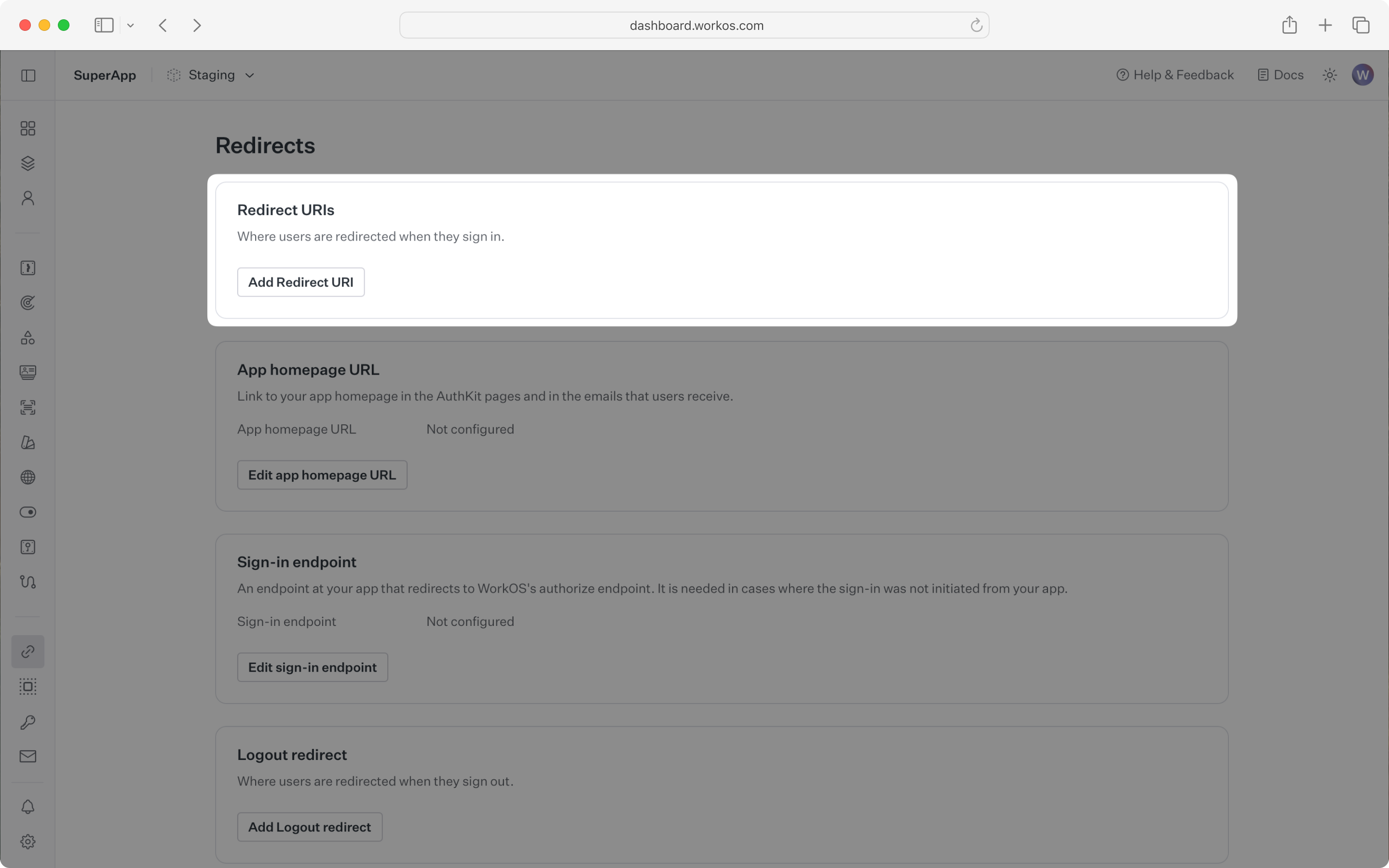
When users sign out of their application, they will be redirected to your app’s Sign-out redirect location which is configured in the same dashboard area.
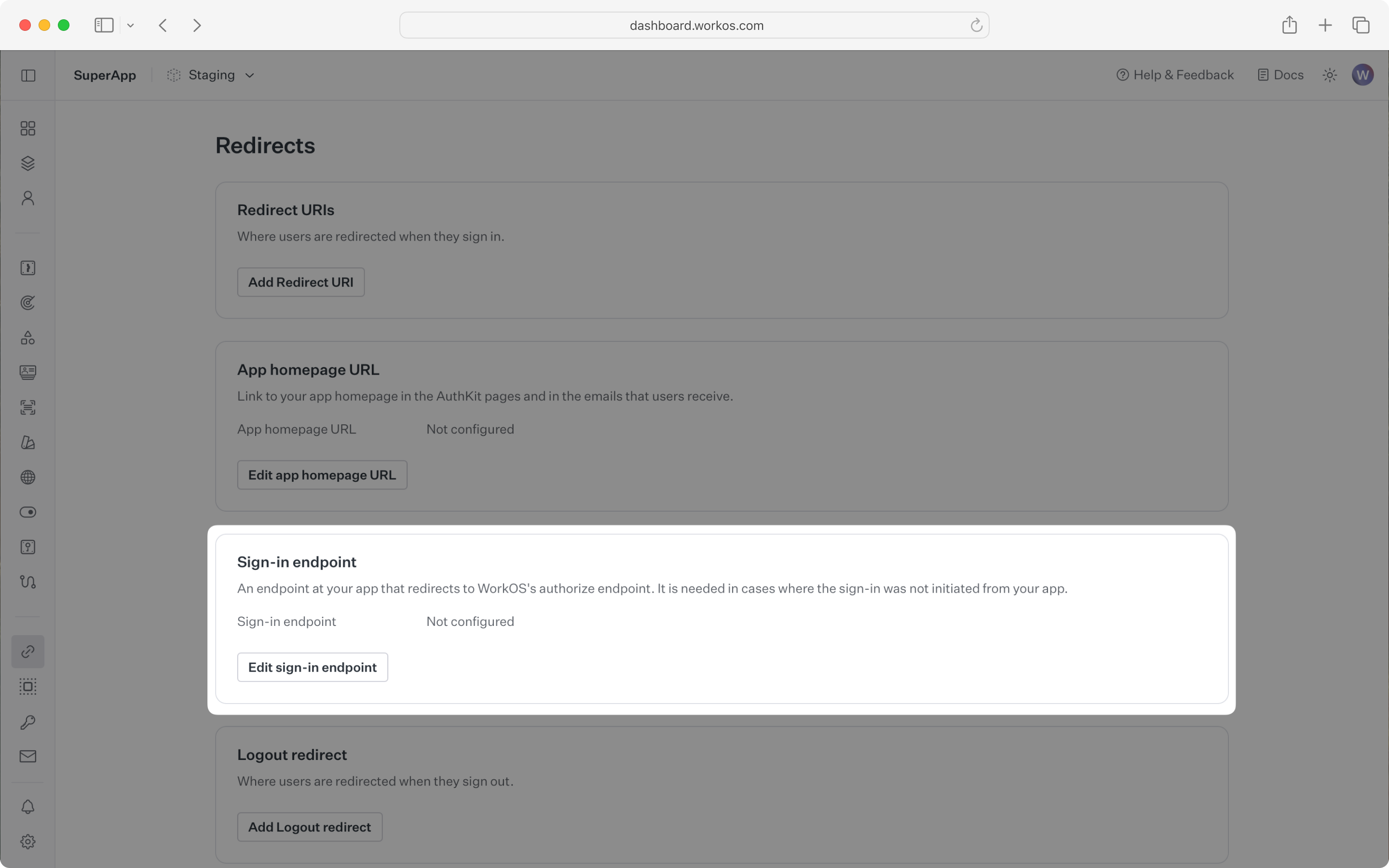
Sign-in requests should originate from your application. In some instances, requests may not begin at your app. For example, some users might bookmark the hosted sign-in page or they might be led directly to the hosted sign-in page when clicking on a password reset link in an email.
In these cases, AuthKit will detect when a sign-in request did not originate at your application and redirect to your application’s sign-in endpoint. This is an endpoint that you define at your application that redirects users to sign in using AuthKit. We’ll create this endpoint in the next step.
You can configure the sign-in endpoint from the Redirects section of the WorkOS dashboard.
To make calls to WorkOS, provide the API key and the client ID. Store these values as managed secrets and pass them to the SDKs either as environment variables or directly in your app’s configuration depending on your preferences.
The NEXT_PUBLIC_WORKOS_REDIRECT_URI uses the NEXT_PUBLIC prefix so the variable is accessible in edge functions and proxy configurations. This is useful for configuring operations like Vercel preview deployments.
The SDK requires you to set a strong password to encrypt cookies. This password must be at least 32 characters long. You can generate a secure password by using the 1Password generator or the openssl library via the command line:
The AuthKitProvider component adds protections for auth edge cases and is required to wrap your app layout.
Next.js proxy is required to determine which routes require authentication.
Implementing the proxy
When implementing the proxy, which was called middleware before Next 16, you can opt to use either the complete authkitMiddleware solution or the composable authkit method. You’d use the former in cases where your proxy is only used for authentication. The latter is used for more complex apps where you want to have your proxy perform tasks in addition to auth.
The proxy can be implemented in the proxy.ts file. This is a full proxy solution that handles all the auth logic including session management and redirects for you.
With the complete proxy solution, you can choose between page based auth and middleware auth.
Page based auth
Protected routes are determined via the use of the withAuth method, specifically whether the ensureSignedIn option is used. Usage of withAuth is covered further down in the Access authentication data section.
Middleware auth
In this mode the proxy is used to protect all routes by default, redirecting users to AuthKit if no session is available. Exceptions can be configured via an allow list.
In the above example, the home page / can be viewed by unauthenticated users. The /account page and its children can only be viewed by authenticated users.
The proxy can be implemented in the proxy.ts file. This is a composable proxy solution that handles the session management part for you but leaves the redirect and route protection logic to you.
When a user has authenticated via AuthKit, they will be redirected to your app’s callback route. Make sure this route matches the WORKOS_REDIRECT_URI environment variable and the configured redirect URI in your WorkOS dashboard.
We’ll need a sign-in endpoint to direct users to sign in using AuthKit before redirecting them back to your application. We’ll do this by generating an AuthKit authorization URL server side and redirecting the user to it.
AuthKit can be used in both server and client components.
The withAuth method is used to retrieve the current logged in user and their details.
The useAuth hook is used to retrieve the current logged in user and their details.
For routes where a signed in user is mandatory, you can use the ensureSignedIn option.
Finally, ensure the user can end their session by redirecting them to the logout URL. After successfully signing out, the user will be redirected to your app’s Sign-out redirect location, which is configured in the WorkOS dashboard.
To test all of this out, call npm run dev, navigate to localhost:3000, and sign up for an account.
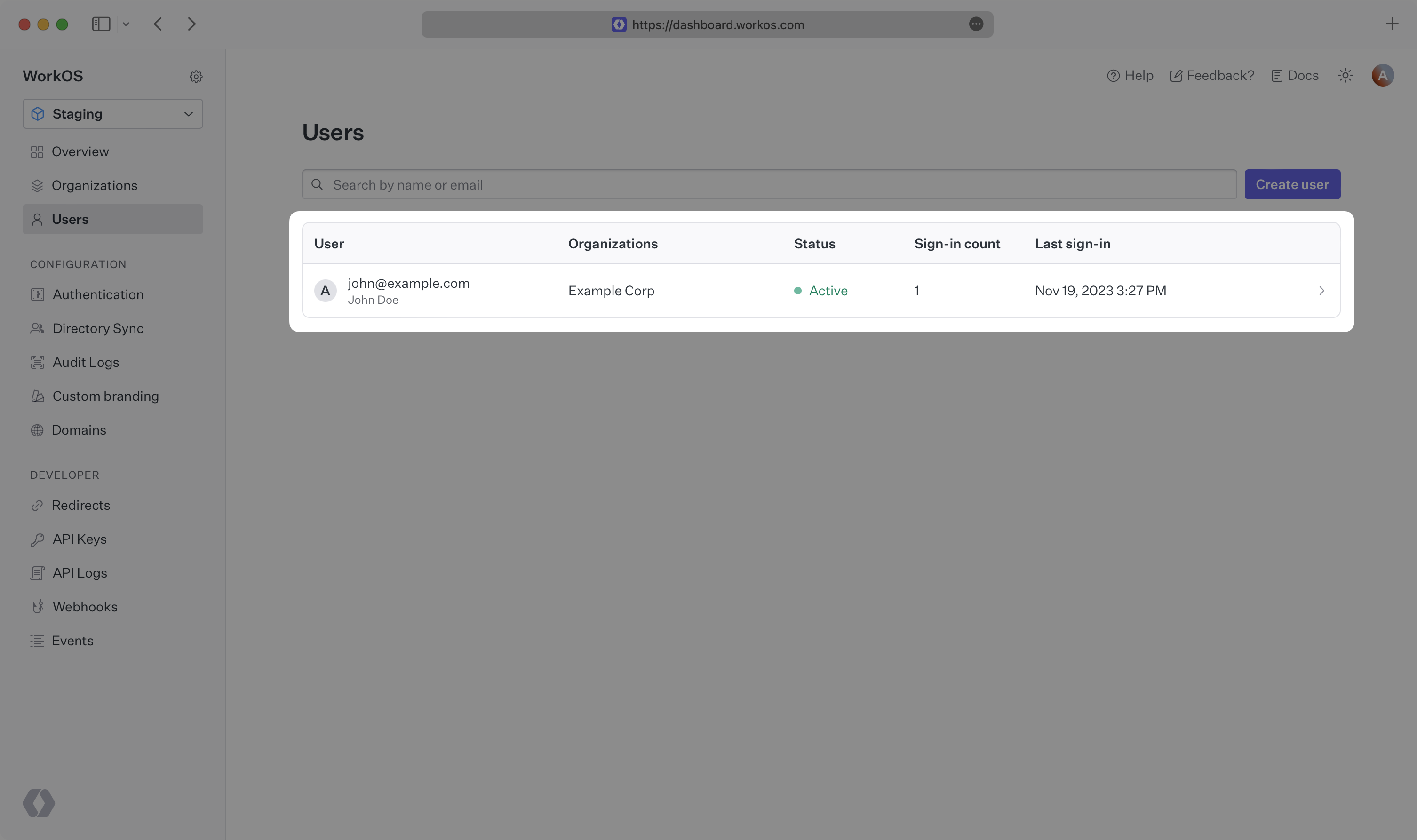
You can then sign in with the newly created credentials and see the user listed in the Users section of the WorkOS Dashboard.